Roles and permissions
A role is a set of permissions, and every member of a workspace has exactly one. Settings → Roles is where you see what each role grants and build your own.
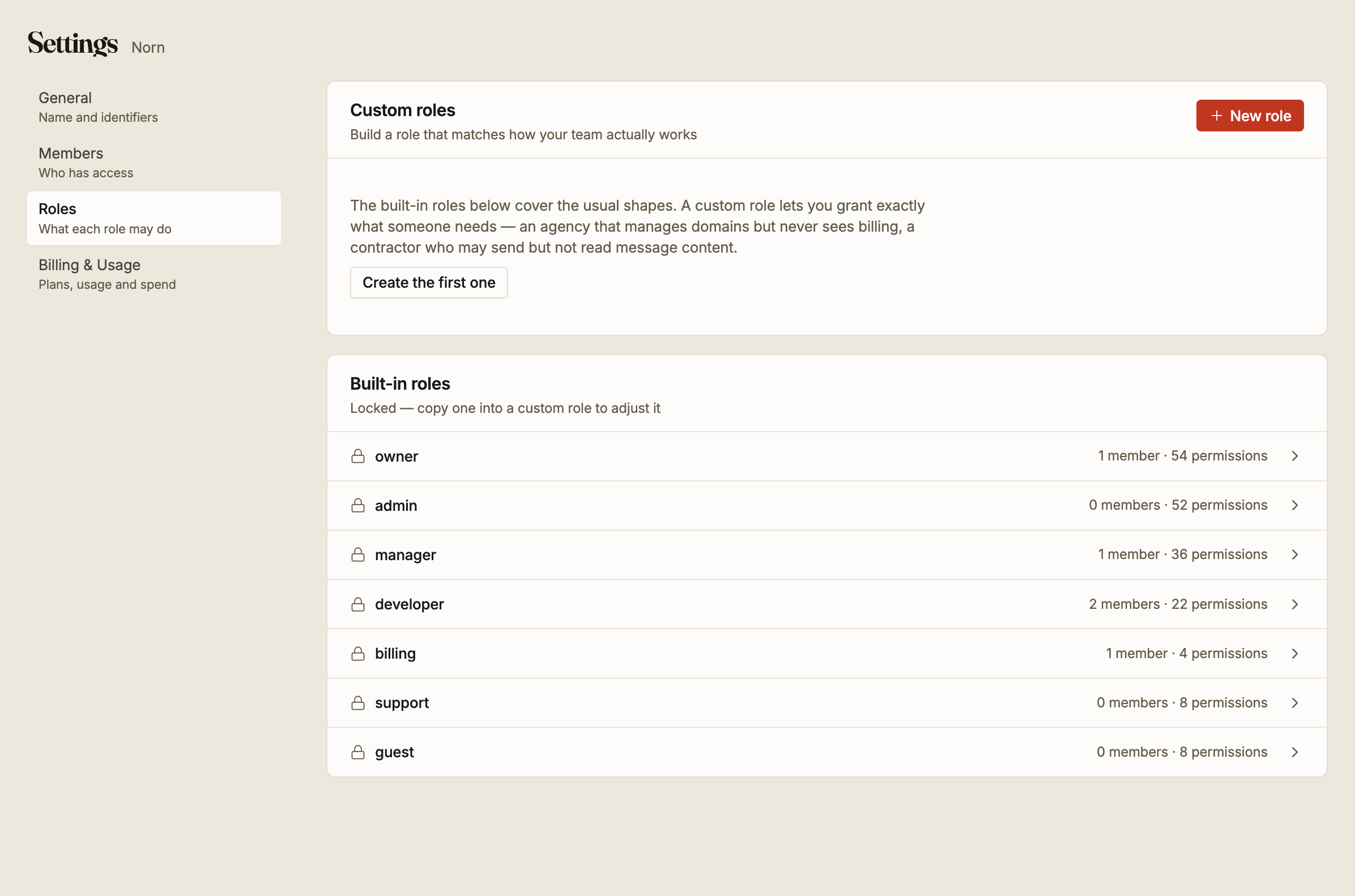
Built-in roles
Seven roles ship with every workspace. They are not a single ladder: the three narrow ones are narrow in different directions, so read what each covers rather than assuming an order.
| Role | Covers |
|---|---|
| owner | Everything admin covers, plus the two things only an owner may do: delete the workspace and transfer a domain |
| admin | Every area, including billing, members and roles |
| manager | Everything admin covers except billing. Full control of domains, campaigns and audiences, and may invite members but not change their roles |
| developer | Credentials, webhooks, domains, campaigns, audiences and activity. No members, roles or billing |
| billing | Billing only, plus reading the workspace and its alerts |
| support | Read-only, and can open individual records to answer a question. No domains, no credentials |
| guest | Read-only lists, including domains, but cannot open an individual record |
Open any of them to see the exact permissions it carries, listed by what they act on and what they allow.
The support and guest distinction is the one worth noting: guest can see that things exist but not look inside them, while support can look inside but cannot see domains at all. Neither can change anything.
Built-in roles are locked. You cannot edit one, which is deliberate: they are the same in
every workspace, so what developer means never depends on which workspace you are looking
at. To adjust one, copy it into a custom role.
Custom roles
A custom role grants exactly what someone needs when none of the seven fits. The two cases that come up most are an agency that manages domains but should never see billing, and a contractor who may send but should not read message content.
New role asks for a name, an optional description, and the permissions themselves.
Start from copies an existing role's permissions as your starting point, or starts from Nothing if you would rather build up than pare down. Starting from the nearest built-in role and removing what you do not want is usually faster and less error-prone than starting empty, because it is easier to spot an extra permission than a missing one.
Permissions are chosen from a matrix of what can be acted on against what can be done to it: domains, campaigns, audiences, API keys, webhooks, members, billing and the rest, each with its own view, create, edit and delete.
You cannot grant more than you hold. Inviting someone, changing their role, and creating or editing a custom role are all checked against your own permissions, and refused if the result would exceed them. A manager can invite people, but not as an admin, because a manager does not hold the billing permissions an admin does.
That also means a role you build is limited by your own. If a permission you expected is not available while building a custom role, it is because you do not have it yourself.
Editing a custom role changes what everyone holding it may do, immediately, including anyone currently signed in.
Choosing a role
Grant the narrowest role that lets the person do their job. It is easy to raise later and awkward to discover, months on, that everybody is an admin because it was simpler at the time.
Practical starting points: the person who runs your sending is a manager, the person who wires up the integration is a developer, whoever handles the invoices is billing, and someone who only needs to look things up is support.