Delivery events
Every message keeps a timeline of what happened to it, in order. When a send needs explaining, this is the record that explains it. A status tells you where a message ended up. The timeline tells you how it got there.
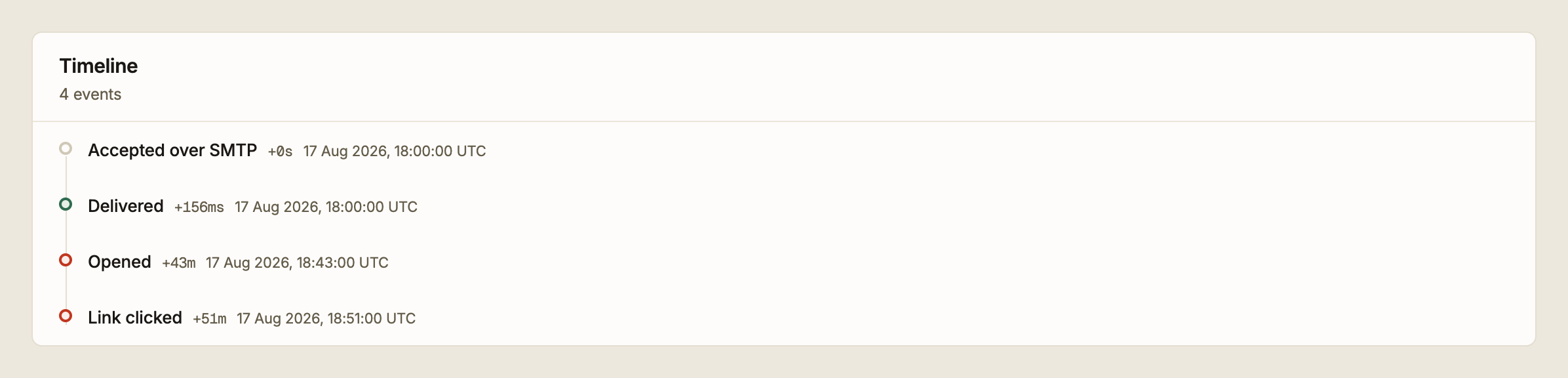
Open any message from Activity to see its timeline.
The events
| Event | What triggered it |
|---|---|
| Queued for delivery | The message was accepted by Epostix and is waiting for the relay |
| Accepted over SMTP | Your client handed the message to Epostix over SMTP |
| Connected to receiving server | The relay opened a connection to the recipient's mail server |
| Delivered | The receiving server accepted the message |
| Opened | The tracking pixel in the message was loaded |
| Link clicked | A tracked link in the message was followed |
Not every message shows every event. A message sent through the API has no Accepted over SMTP, and a message with tracking disabled will never record an open or a click no matter how many times it is read.
Reading the offsets
Each event carries a time in UTC and an offset from the first event: +156ms, +43m,
+2.1h. The offset is what you actually want when judging performance: the gap between
the first event and Delivered is how long delivery took, and everything after that is
recipient behaviour, not your infrastructure.
A delivery measured in hundreds of milliseconds is normal. A gap of minutes means the first attempt did not succeed. A Delayed status and a retry in the timeline will tell you whether the receiving server asked us to wait.
How far to trust an open
An open means an image in the message was loaded. That is a weaker signal than it sounds, and the timeline says so where it can.
Apple privacy proxy. Events tagged this way were produced by a proxy prefetching the image, not by a person reading the message. Apple Mail does this by default for anyone who enabled Mail Privacy Protection, which is most Apple Mail users. These opens are real events but they are not evidence anyone read anything.
Bot. Events tagged as a bot came from automated fetching. A security scanner that follows links in the message before delivering it to the recipient is the usual source. A message that shows a click within a second of delivery was almost certainly scanned, not read.
Where it can be identified, the timeline also shows the mail client, operating system, device type and IP address behind an event.
Clicks are stronger evidence than opens, because a click needs a deliberate action and is not prefetched by mail clients, though the scanner caveat above still applies.
When a message failed
A failed message shows a plain-language explanation of what the receiving server said, followed by the server's verbatim response. The explanation covers the common cases.
| Explanation | What it means |
|---|---|
| The mailbox does not exist | The address is wrong or has been closed. This is a hard bounce |
| Rejected on content or reputation grounds | The receiving server judged the message or your sending domain, not the address |
| The recipient's mailbox is full | Temporary. Usually succeeds later |
| We could not reach the receiving server | The recipient's mail server did not answer |
| The recipient's domain has no working mail server | The domain has no usable MX record |
The verbatim response is shown because receiving servers frequently include a URL explaining their own policy, and that URL is the fastest route to a fix when a large provider is rejecting your mail.
Use has:errors in Activity to list every message that recorded an error.