Importing contacts
Import takes a CSV or TSV file and adds its rows to your audience. It runs in three stages, and nothing is written until you confirm on the last one.
1. Choose the file
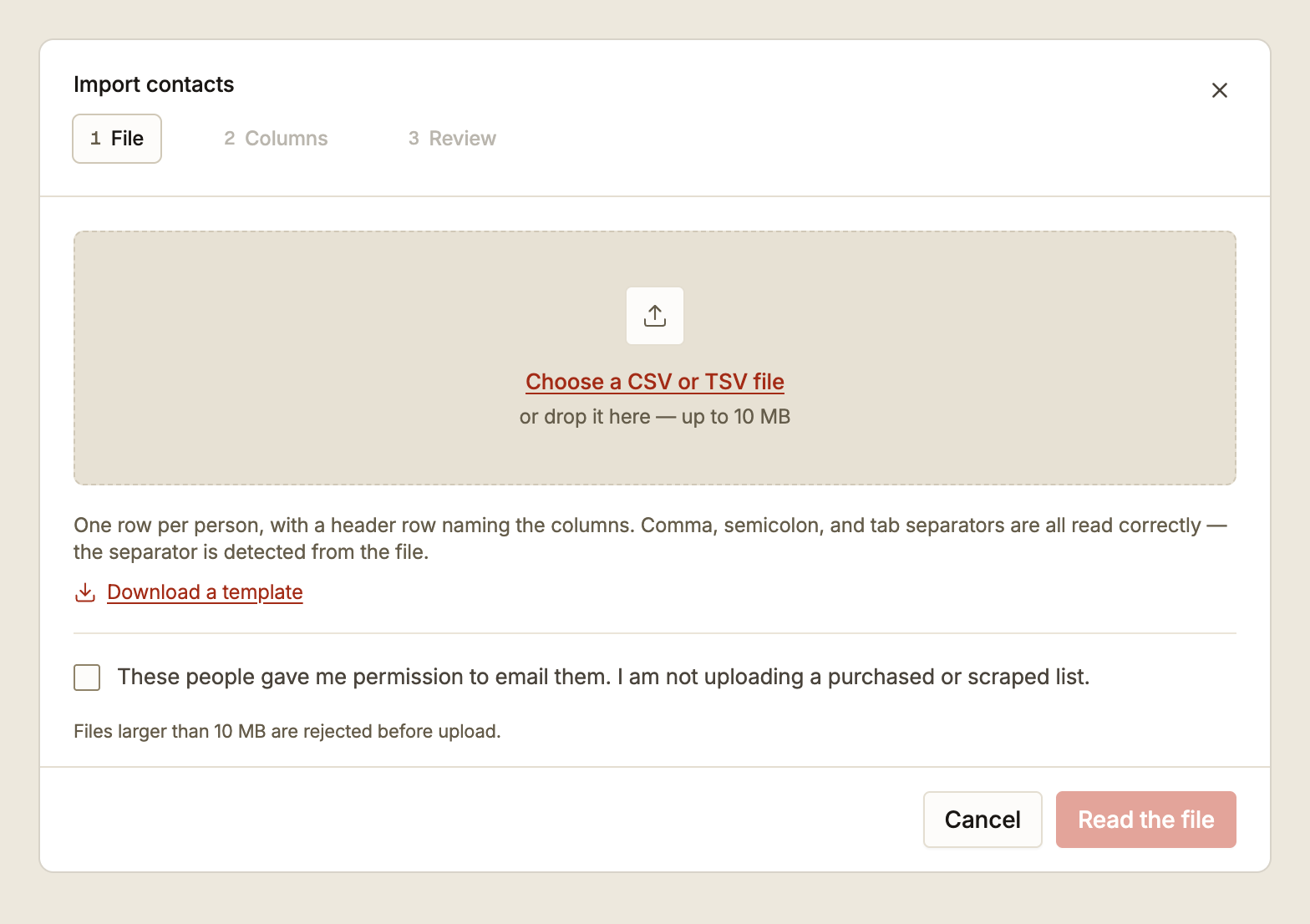
One row per person, with a header row naming the columns. The only column that matters is the email address. A name and tags are optional.
Email,Name,Tags
[email protected],Full Name,"customers,newsletter"
[email protected],Another Person,newsletter
Download a template gives you exactly this file to fill in.
Comma, semicolon and tab separators are all read correctly, and the separator is detected
from the file. Exports from spreadsheet software in other locales work without conversion.
The stage confirms what it found, for example 0.3 KB · comma-separated.
Files are limited to 10 MB, and anything larger is rejected before it uploads rather than failing part-way through.
Consent
Before you can continue you have to confirm that the people in the file gave you permission to email them, and that the list was not purchased or scraped.
This is not a formality. A purchased list is the most reliable way to generate hard bounces and spam complaints, and those land on the sending reputation of your domain, where they affect your transactional mail too. See bounce rate and suppression.
2. Map the columns
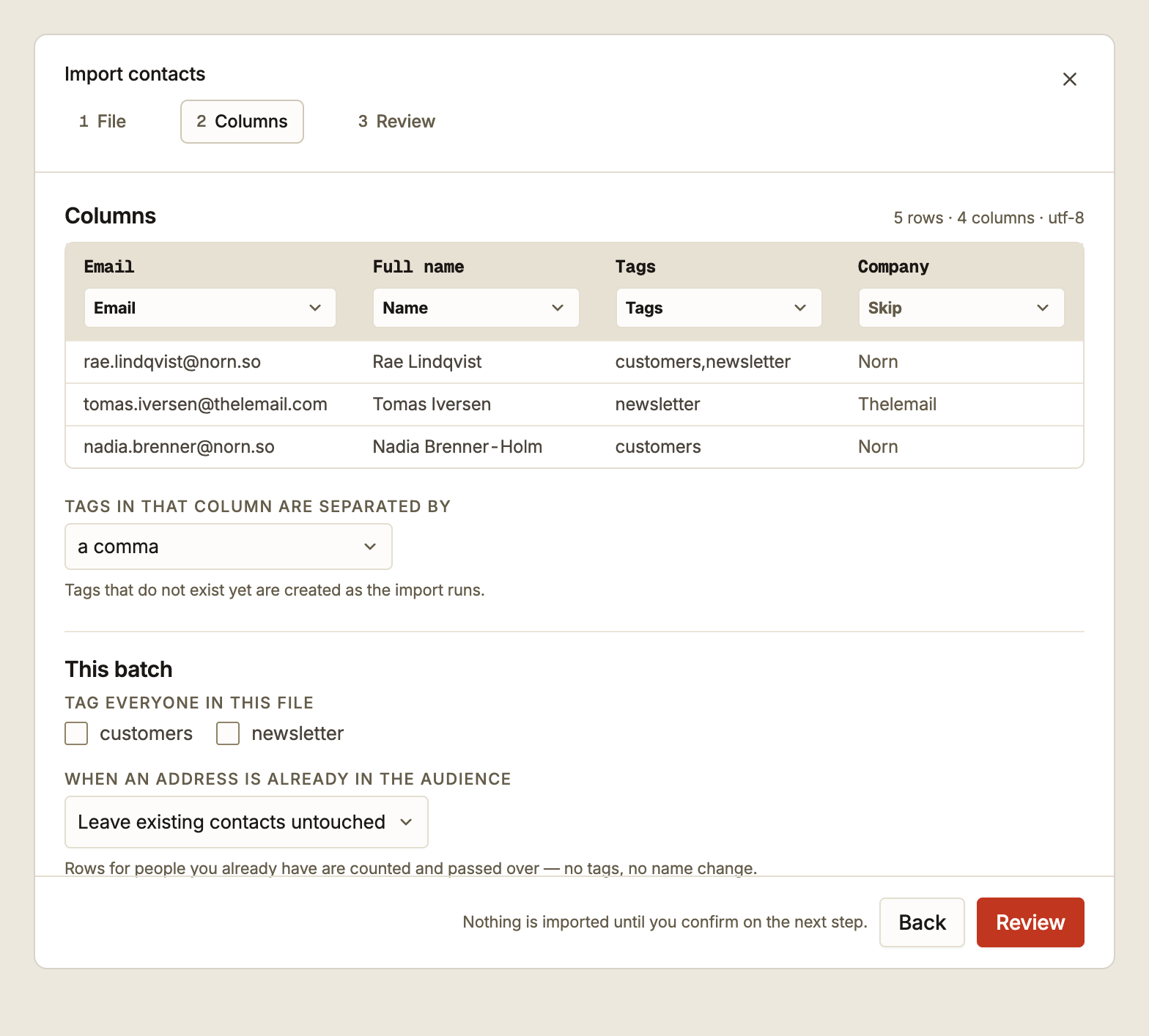
Your file's headers appear across the top with a dropdown under each one. Epostix guesses the mapping from the header names, so a well-named file usually needs no changes. Check it anyway, because the guess is a guess.
Each column becomes one of four things:
| Choice | Effect |
|---|---|
| The address. Exactly one column must be mapped to this | |
| Name | The contact's display name |
| Tags | Tags to apply to that contact |
| Skip | The column is ignored |
Three sample rows from your own file are shown under the dropdowns, so you can confirm you
picked the right column rather than trusting the header. The header line also reports what
was read, for example 5 rows · 4 columns · utf-8.
Tag separator
Tags in that column are separated by is a separate setting from the file's own separator. A file that is comma-separated can still hold tags split by a semicolon or a pipe, which is common when the tags field would otherwise need quoting. Choose comma, semicolon or pipe to match your file.
Tags that do not exist yet are created as the import runs, so there is no need to create them first.
Tagging the whole batch
Tag everyone in this file applies existing tags to every contact in the import, regardless of what the file's own tags column says. This is the easy way to mark where a list came from, which is worth doing on any list you did not collect yourself.
When an address is already in the audience
| Choice | Result |
|---|---|
| Leave existing contacts untouched | The row is counted and passed over. No tags, no name change |
| Update their name from the file | The name is updated, and the source becomes Import |
Neither choice changes a contact's status.
3. Review, then import
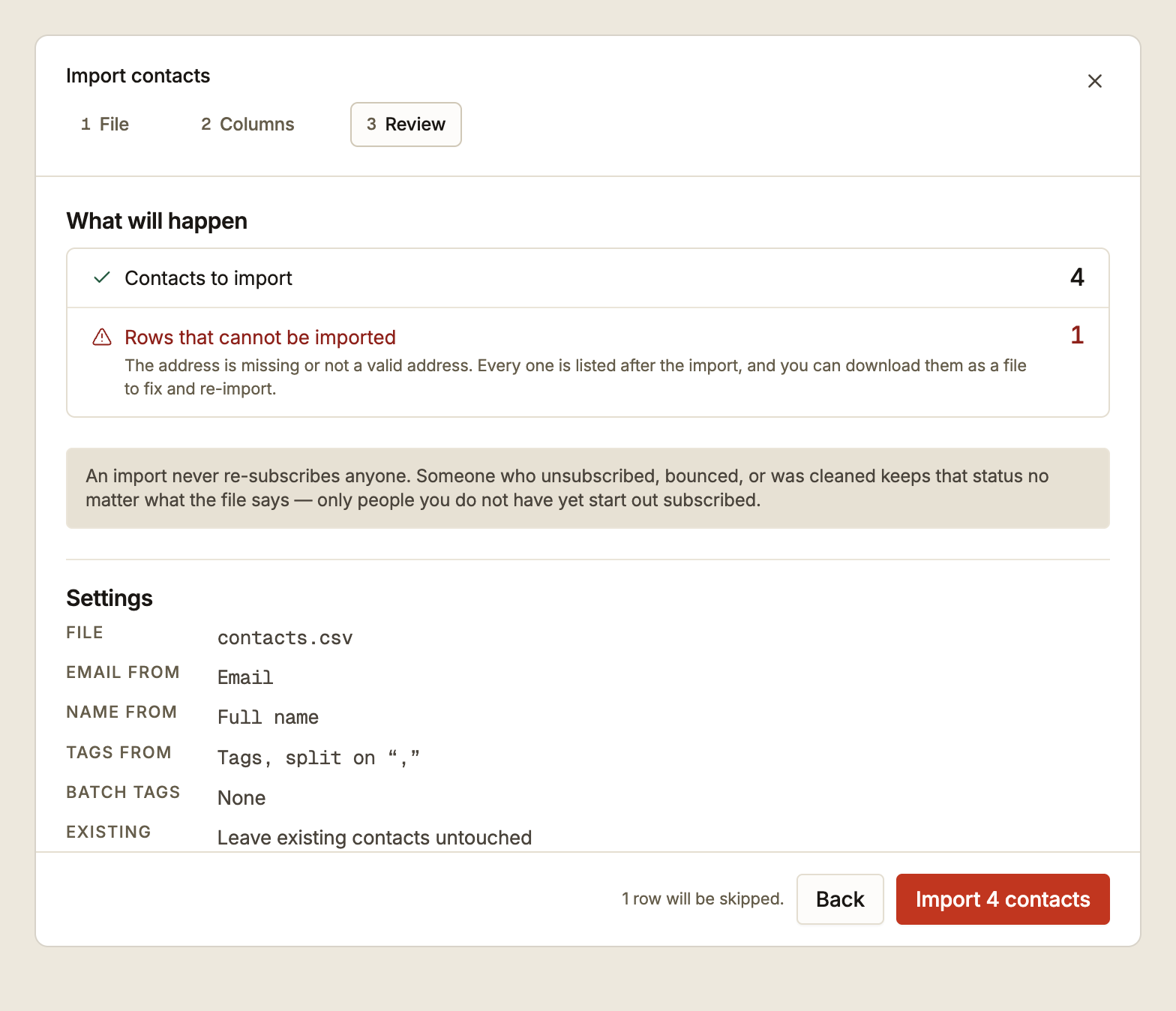
The last stage says exactly what will happen: how many contacts will be imported and how many rows cannot be used. Nothing has been written yet, so this is the point to go Back if the numbers look wrong.
It also repeats every setting you chose, including which column each field came from and what the tags will be split on. The button names the number, for example Import 4 contacts, so the count is confirmed twice before anything happens.
An import never resubscribes anyone. An address that is already Unsubscribed, Bounced or Cleaned keeps that status, whichever conflict rule you pick. Only people you do not have yet start out subscribed. Re-uploading an old file cannot undo an opt-out, which is the behaviour you want when a stale export gets imported by mistake.
Large files import in the background. Progress appears at the top of the audience screen and you can leave the page.
Rows that fail
A row that cannot be imported is skipped, and the rest of the file still imports. The usual cause is an address that is missing or not a valid address.
Every failed row is listed after the import, and you can download them as a file to fix and re-import. Each one is reported with its line number in your original file, counting the header as line one, so you can open the file and find the exact row rather than guessing which record was meant.
Re-importing a corrected file does not create duplicates. Rows that already imported are matched by address and handled by the conflict rule above.
After the import
Newly imported contacts start with no engagement data, because engagement is calculated from campaigns they have received. They show as No data until you send to them, then New until they have received three campaigns.
If the import pushed you close to your plan's contact limit, the audience screen shows where you stand. Epostix allows 10% above the limit before new contacts are refused.